

Introduction
It’s often been said that a Macintosh is a great peripheral for an Apple II. Today, if you have a LANceGS, it’s an even greater peripheral.
The LANceGS card is the fastest way to access the Internet with your Apple IIGS, and the best way to use it is with a “router”. A router is a device—either a dedicated hardware device such as a Linksys EtherFast Cable/DSL Router or a computer running a software program—that acts as a kind of traffic cop—it takes in information and redirects it to the appropriate place, either another computer on its local network or somewhere on the Internet.
Let’s look at an illustration which may help to explain this better:
    +----------+
    |          |  Ethernet
    |Macintosh |::::::
    |          |.2   : 192.168.0.x
    +----------+     :
                     :      +----------+   Cable modem
    +----------+     :   .1 |          |     Ethernet
    |          |     :::::::|  Router  |:::::::::::::::::::// Internet
    |Apple IIgs|::::::      |          |  111.222.121.212
    |          |.3   :      +----------+
    +----------+     :
                     :
    +----------+     :
    |          |     :
    | Windows  |::::::
    |          |.4
    +----------+
In this example, there is only one Internet connection, and it goes to the router, which distributes the information to and from the three computers attached to it. The router gets information to and from the Internet and routes it to the appropriate computer; each computer gets the information it needs while ignoring the data meant for the other computers. A little network like this is commonly called a “LAN” (Local Area Network).
There are dedicated hardware devices that can serve the purpose of routing, such as the Linksys BEFSR41 and the BEFSR11, both of which are confirmed to work with the LANceGS. These devices are inexpensive—and getting less expensive each week—as well as simple to set up and light on electricity use. They may be the best solution, but they are not the only solution.
You can also use a computer as a router. The software for this has been available for some time, in fact. IPNetRouter (commonly referred to as IPNR) is a Macintosh program published by Sustainable Softworks—an excellent piece of software for this type of application. There are two versions, one for the 68000 series (68K) Macintosh, the other for the PowerPC (PPC) Macs. We’ll look at the 68K version here, since the program runs well even on older 68k Macs, which are plentiful and inexpensive. Let’s look at what is needed to get one of these routing the ‘Net to your Apple IIGS.
What You Need—Hardware
Apple IIGS
Apple IIGS with LANceGS card
recommended: 4 megabytes of RAM or better, hard drive, accelerator
Macintosh
Macintosh with 68030 processor and 10 Base T Ethernet connection
recommended: 8 megabytes of RAM or better, 100 megabyte hard drive or better
Other
10 Base T Ethernet hub
two Ethernet cables (not crossover)
What You Need—Software
Apple IIGS
Apple IIGS System Software 6.0.1 (available from A2Central.com as well as other sources)
Marinetti 2.0.1 (available from http://www.apple2.org/marinetti/ as well as other sources)
LANceGS routing driver (included with the LANceGS Ethernet card)
Macintosh
Macintosh System 7.5.3 or later
Open Transport 1.1.2 or later
(both of these are available without charge from Apple’s Internet archives at ftp://ftp.apple.com/)
IPNetRouter 1.5.3 for the 68K Macintosh (downloadable from http://www.sustworks.com/ —please see the site for registration details).
Other
Internet connection (in this example we will be using a cable modem connection using dynamic host configuration protocol [DHCP] as our primary reference)
The Physical Setup
In this example of using a Macintosh with a single Ethernet connection, our equipment is physically set up like this:
    +---------------+
    |Macintosh      |
    |111.222.121.212| Ethernet   +---------+   Cable modem
    |192.168.0.1    |::::::::::::|         |   to the hub's
    +---------------+            |10 Base T|   uplink port
    +---------------+ Ethernet   |   Hub   |:::::::::::::::::::// Internet
    |Apple IIgs     |::::::::::::|         |     Ethernet
    |192.168.0.2    |            +---------+
    |               |
    +---------------+
The setup here is very simple. All you need are your computers, cable modem, hub, and three pieces of Ethernet cable. Cable length is relatively unimportant (they can each be up to 100 meters in length). The connection from the cable modem goes into the “daisy chain” or “uplink” port on the hub; the Apple IIGS and Macintosh plug into any of the other available ports. When purchasing a hub, it may be best to remember that computers in this day and age multiply—it might be better to buy an 8 port hub now rather than a second four port when your four port runs out of room in a year or two!
Hardware Setup: Macintosh
Even a very old Macintosh can serve well as a software-based router; for instance, I’ve used a circa 1989 SE/30 with IPNR as a router with no ill effects. Macs such as these come in many shapes and sizes—all you really need is something with at least 8 megabytes of memory, a hard drive of maybe 100 megabytes in size, and a 10 Base T Ethernet port–in our example I’m using a LC475 I bought at a thrift store for $15, complete with 8 megabytes of RAM, 160 megabyte hard drive, and a 10 Base T Ethernet card.
If the Mac you want to use for routing has an Apple Attachment Unit Interface (AAUI) port, you can purchase a transceiver to adapt it for use with a 10 Base T network. One source is our friends over at Alltech Electronics.
Unfortunately, there are so many different Macs it’s not possible to cover installation of an Ethernet card into every one of them. The basics, however, are to take anti-static precautions, make sure the power is off, read the directions carefully, install software if needed, and if you feel over your head, by all means, find someone who can help you! Better to pay a few dollars to have the card installed than to have unusable equipment.
Hardware Setup: Apple IIGS
Assuming you already have a relatively robust Apple IIGS, all you need to do is purchase a LANceGS 10 Base T Ethernet card from ///SHH Systeme and insert into an available slot in your Apple IIGS. Follow the instructions in the manual carefully and you’ll be all set. If you need help, you can see the excellent LANceGS setup instructions at http://lancegs.a2central.com/install/index.html
Software Setup: Macintosh
If your Macintosh system software (including Open Transport) isn’t up to the levels mentioned above, head over to ftp://ftp.apple.com/ to upgrade it. If you haven’t already, download IPNetRouter from Sustainable Softworks’ Internet site at http://www.sustworks.com/ and make sure you register it if you find it useful. Go ahead and install the system software first, then IPNetRouter. You’ll probably have to reboot your Mac a couple times during this process. Go right ahead, we’ll wait.
IPNR comes with an excellent manual, but we will cover the highlights for those who want a jump start. Two quick notes: first, make sure your Macintosh does not go into sleep mode. Second, uncheck “Load Only When Needed” in your Mac’s TCP/IP Control Panel. To do this, you must be in “Advanced Mode”. You get there by selecting “User Mode” in the “Edit” menu, then click the “Advanced” radio button on the resulting dialog. Once you uncheck “Load Only When Needed”, you can revert back to “Basic Mode” if you’d like.
Next, you must have your Mac make its Internet connection. To do this using DHCP, all you ought to have to do is set your TCP/IP Control Panel to connect via “Ethernet” and configure “Using DHCP Server”.
After that, it’s time to configure IPNR. This seems like a daunting task for new users, but it’s really not all that bad. There is a section in the IPNR manual beginning on page 21 about how to configure a setup like we propose. We’ll condense things here, but we also must explain a little more than you probably want to know about IP addresses.
IP addresses are those numbers that you see in your TCP/IP Control Panels. There are several kinds of IP addresses for different uses. In this case, we want to define two different types of addresses, internal and external. External addresses are the ones used on the Internet. Internal addresses are used only on your private LAN. There are several types of internal addresses, but the ones we’re interested in begin with 192.168 in the form 192.168.X.Y. An IP address of the form 192.168.X.Y will be used for your Apple IIGS once we’re done. If it’s both on a local network and the Internet, a single network interface (such as the Ethernet port on your Macintosh) can have both an internal and external IP address.
Go ahead and start up IPNR. In the main (“Interfaces”) window, click on the top row, which ought to have your external IP address in it as well as a “Port Name” like “Ethernet” and an “Interface Name” like “enetDRVR0”. In the “Configure Interface” box below, click on the “IP Masquerading” checkbox so it is checked and click the “Add” button. “IP Masquerading” is another term for the type of routing or network address translation we are setting up here.
You’ll need to configure a second interface for your Ethernet port—an internal IP address. Use the “Configure Interface” box again. Ethernet should still be selected as a “Port Name”. Under “Interface Name”, click on the up arrow once so that the “Interface Name” becomes something like “enetDRVR0:1” You’ll need to also select an IP address. Remember those 192.168.X.Y numbers? Well, for your router, you will probably want to select an address like 192.168.0.1. The IPNR manual suggests not choosing this particular address as it is very common and may conflict with other users on your cable modem service and suggests a number such as 192.168.73.1. That’s fine too—you can use any number between 0 and 254 as that third number—but for this example we’ll use 192.168.0.1. You should also select an IP address for a “Mask”. This one is simple—just make it 255.255.255.0. Go ahead and check “Bring Up” in the “Configure Interface” box. Do not check any of the boxes in the “Configure Interface” box except “Bring Up”.
Your “Interfaces” box should now look something like this:
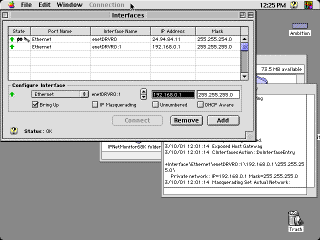
You’ll probably want to save this configuration. Go ahead and use the “Save As…” selection in the “File” menu to save it. Then, when you want to use IPNR, you’ll just need to double click the configuration file. You’ll also want to note down the “enetDRVR0:1” IP address (192.168.0.1 in this example), the “Mask” (255.255.255.0), and the “Name Server Addresses” (from the Mac’s TCP/IP Control Panel).
Keep IPNR running. You’re done setting up the Mac. Now for the Apple IIGS.
Software Setup: Apple IIGS
Assuming you’re already running System Software 6.0.1 and Marinetti 2.0.1, you need two pieces of software. Both come with the LANceGS card. One is the “LANceGS.Driver” file that goes in the “TCPIP” folder in your startup disk’s “System” folder. The other is “LANCETST.SYSTEM”, a ProDOS 8 application which will let you set up your LANceGS. This can go on any ProDOS disk.
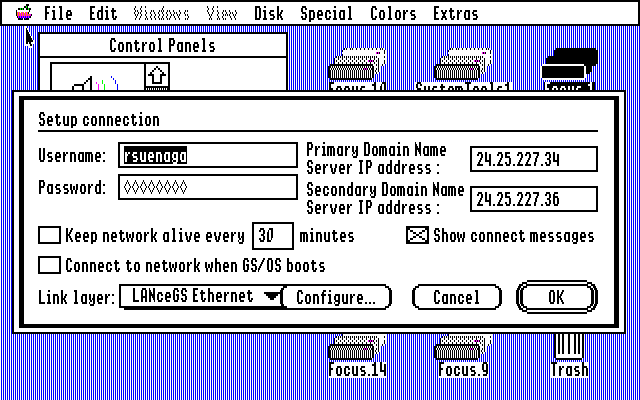
First, in the TCPIP Control Panel, select the “LANceGS Ethernet” Link layer. Also make sure you enter the IP addresses for your “Primary Domain Name Server” and “Secondary Domain Name Server” in the TCPIP Control Panel, matching the “Name Server Addresses” from the Mac (I told you you want to note these). Note that many people have difficulty with DNS not functioning on the IIGS—I have had no problems with it, so your mileage may vary.
Next, start up “LANCETST.SYSTEM”. What you are particularly interested in now is option P: Setup default IP addresses. Press P (or p) to set up your LANceGS IP addresses.
As your own IP address you want to have a number similar to the internal address for “enetDRVR0:1″—in our case 192.168.0.1. This can be anything from 192.168.0.2 to 192.168.0.254, your choice. We’ll use 192.168.0.2 for simplicity’s sake. If you have chosen a different number for your internal “enetDRVR0:1” address (also known as your “gateway” or “router” address) such as 192.168.73.1, you’ll want to have your IIGS use something between 192.168.73.2 and 192.168.73.254 inclusive. You can set this number with option O in the LANceGS IP Address Setup screen. You can ignore the destination IP address, but you do want to specify a subnet mask with option M (255.255.255.0, matching the mask noted earlier) and a gateway IP address with option G (192.168.0.1, or whatever matches the internal “enetDRVR0:1” address, which is the internal IP address for your router). Use option S to store this in non-volatile memory, then quit the application and get back to a GS/OS application (such as Spectrum or Finder).
Now, you ought to simply be able to open the TCPIP Control Panel and connect with your LANceGS to the Internet! Open telnet sessions with Spectrum, check mail with Spectrum Automated Mailer, send instant messages with gsAIM—anything you could do with your TCP/IP dialup connect you can now do faster with your LANceGS!
Troubleshooting
If things don’t go right off the bat, you may have to find the source of your trouble. Check the cabling—both the physical cables themselves as well as making sure you’re putting them in the right places (you do have the cable modem connected to the uplink port, right?). You may also want to check and see if the Macintosh can use the Internet. If it can, either something in your IIGS TCPIP settings or your IPNR settings is amiss, or your cables or hub is not properly functioning (they are plugged in, right?). The IPNR manual has an excellent section on troubleshooting network problems.
Security
Security is beyond the scope of this article, however, it is something to pay attention to. Go ahead and take a look at the section on the IPNR manual on “Building Your Own Low Cost Firewall” if you want to know more about security.
Conclusion
In conclusion, you can use a Macintosh as another great Apple II peripheral–a router. LANceGS and IPNetRouter make it all possible. As you can see, a whole new world is opened up for the Apple II with just a little effort. Have fun!
Glossary
10 Base T: A standard for networking established by the Institute of Electrical and Electronics Engineers, Inc. (IEEE) using unshielded twisted pair cable and running at 10 Megabits per second.
AAUI: Short for Apple Attachment Unit Interface. A 14 or 15 pin port on earlier models of Macintosh computers that allowed it to be connected by a transceiver to an Ethernet network. Recent Macintoshes have dropped the AAUI in favor of more standard 10 Base T (or faster) connectors.
Cable modem: A modem designed to operate over cable television lines. Because the coaxial cable used by cable television provides much greater bandwidth than telephone lines, a cable modem can be used to achieve extremely fast Internet access. Cable modems are generally connected using Ethernet, rather than the slower serial connections commonly used with dial up modems.
Category 5 cable: Commonly referred to as “Cat 5”. Category 5 is a type of twisted pair wiring in which there is a certain number of twists per foot. This high number of twists prevents interference and enables Category 5 cable to carry higher bandwidths than others. Used commonly by 10 Base T networks.
DHCP: Short for Dynamic Host Configuration Protocol, a protocol for assigning dynamic IP addresses to devices on a network. With dynamic addressing, a device can have a different IP address every time it connects to the network, and can even change while still connected.
Ethernet: The first non-proprietary local area network hardware and software that was developed during the late 1970s through a partnership of DEC, Intel, and Xerox. Very common in schools, businesses, and homes.
Hub: A term used to describe a device that serves as the center of a star-topology network. For our purposes, a hub is an Ethernet multiport repeater.
LAN: Local Area Network. A network covering a relatively small geographic area, such as a home or a building.
Router: A device that can decide which of several paths network traffic will follow based on some optimality metric. For our purposes, a router can be either stand-alone hardware based or software based running on a computer on a LAN.
Internet Resources
http://www.a2central.com/
A2Central.com carries Apple II System Software as well as being a total resource for Apple II computing.
http://lancegs.a2central.com/
Information on the LANceGS card, including installation.
ftp://ftp.apple.com/
Apple’s Internet software repository, including both Macintosh and Apple II System Software (note: you must have a Macintosh with an 800k compatible floppy drive in order to create Apple II disks usable by most Apple IIs).
http://www.allelec.com/
Alltech Electronics carries Apple II, Macintosh, and general networking computer hardware.
http://www.sustworks.com/
Sustainable Softworks, publishers of IPNetRouter.
http://www.wbwip.com/shh/index.html
///SHH Systeme, makers of the LANceGS Ethernet card and other Apple II hardware.